
Aurebesh Keyboard: Type, Edit, Copy and Download Star Wars Lettering
Loading local glyph font. Preview and PNG export will be available when it loads.
Optional digraph keys
Copied text uses Latin characters and requires a compatible font to display Aurebesh in another application. PNG downloads retain the visual glyphs.
The Aurebesh keyboard lets you compose Star Wars lettering one character at a time. Select letters from the on-screen keys or type with your device’s keyboard, edit your message, and see it rendered in Aurebesh. When you’re finished, copy the editable text or download the lettering as a PNG image, including an option for a transparent background.
This tool is for building and arranging your own text. If you already have a complete English sentence and simply want to convert it, the Aurebesh translator is the quicker starting point. Here, you control the characters and layout while you compose.
How to Type with the Aurebesh Keyboard
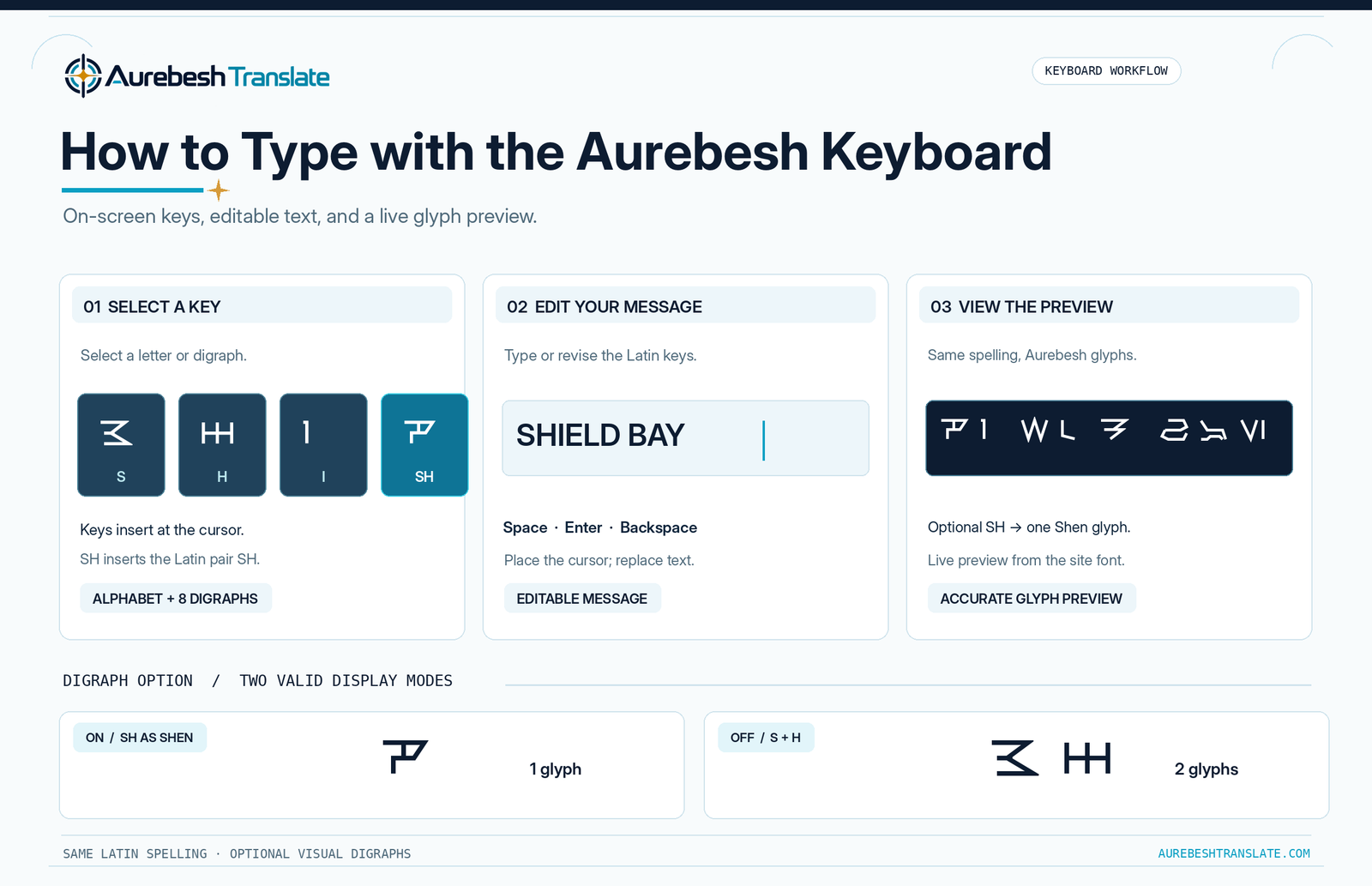
The writing area and the visual preview work together. The editor holds the letters you enter, while the preview displays the corresponding Aurebesh glyphs from the site’s font.
Select Characters Using the On-Screen Keys
Choose a letter from the virtual keyboard to insert it into your message. Each key shows its Aurebesh symbol alongside a Latin-letter label, so you can find the character you want without memorizing every shape first.
The characters appear at the current cursor position. To add a letter between two existing characters, place the cursor at that point in the editor and select the required key. You can also highlight part of the text before inserting a replacement.
For unfamiliar symbols, the interactive Aurebesh alphabet provides a closer view of each glyph and its conventional name. The keyboard itself is intended for composition rather than character study.
Type and Edit with Your Device Keyboard
You can enter ordinary Latin letters directly in the editing field instead of pressing each virtual key. The preview uses those letters to display Aurebesh as you work.
The editing controls are practical rather than decorative:
- Space separates words.
- Enter (the on-screen button or your device keyboard’s Enter key) starts a new line.
- Backspace removes the selected text or the character before the cursor.
- Clear empties the message so you can start again.
You can move the cursor, select text and revise a word without rebuilding the entire message. This is useful when adjusting a sign or fitting a slogan into a short line.
Choose Whether to Display the Eight Optional Digraphs
Traditional Aurebesh includes eight additional characters for the letter pairs AE, CH, EO, KH, NG, OO, SH and TH. The keyboard has dedicated keys for these combinations as well as a control labelled Show eight optional digraphs as one glyph.
With that option enabled, a supported pair can appear as a single Aurebesh symbol in the preview. With it disabled, the same letters appear as two basic symbols. For example, SH can be displayed using Shen or as separate S and H characters.
Selecting the SH key inserts the underlying letters SH into your editable message. The digraph setting determines how the preview renders the pair; it does not change the spelling you entered. You can switch between the two appearances to see which suits the lettering you are preparing.
Neither form is automatically incorrect. The Aurebesh digraphs reference covers the traditional combinations in more detail, while this setting lets you make a practical visual choice.
Copy Your Message or Download an Aurebesh PNG
The keyboard provides two different ways to take your work elsewhere. They serve different purposes, so choose according to whether you need editable characters or the actual visible lettering.
What “Copy Latin Keys” Copies
The Copy Latin keys button copies the text stored in the editor. If you composed REBEL BASE, the copied content is those Latin letters, even though the preview displays Aurebesh glyphs.
When pasted into an application using an ordinary font, that text will generally appear as Latin letters. To display it as Aurebesh in another compatible application, you need an appropriate Aurebesh font. The Aurebesh fonts page provides our downloadable typeface for that purpose.
This is a distinction between characters and their visual appearance. The Unicode Consortium’s guidance on fonts and keyboards explains why a font’s glyph design should not be confused with the underlying text. For a more detailed explanation of portability, see Aurebesh Unicode and copy-and-paste.
Save a White or Transparent PNG
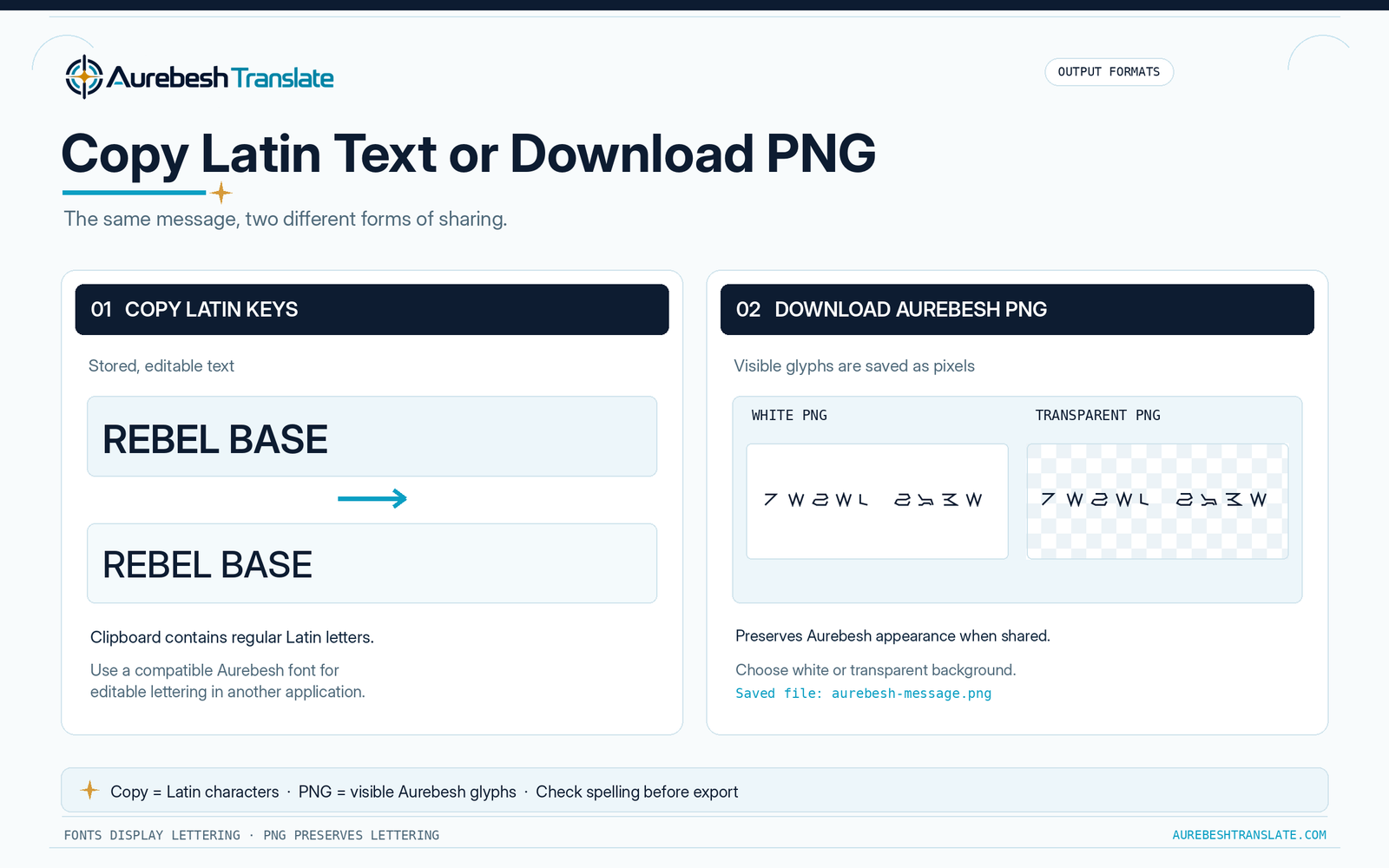
Select Download Aurebesh PNG to save the lettering shown in the preview as an image. Unlike copying the editable text, an image preserves the Aurebesh glyph shapes when opened or shared on another device.
By default, the downloaded PNG has a white background. Enable Transparent PNG if you want to place the lettering over a poster, illustration or other design without a white rectangle around it.
The file saves as aurebesh-message.png. The finished image reflects the current message and digraph-display choice. Check the preview, line breaks and spelling before downloading.
PNG export requires the site’s Aurebesh font to load successfully in your browser.
Example: Compose a Short Aurebesh Label
Suppose you want to make a label reading SHIELD BAY.
- Enter SHIELD using your device keyboard or the on-screen letter keys.
- Press Space, then add BAY.
- Turn on optional digraphs to display the initial SH with the single Shen glyph. Turn the option off to compare the separate letters.
- Review the spelling and the spacing in the Aurebesh preview.
- Choose Download Aurebesh PNG for a finished visual label, or Copy Latin keys if you intend to edit the text in another application with a compatible font.
This example shows why the keyboard is useful even when the wording is simple: you can revise the text, inspect the glyph arrangement and choose an output format without starting over.
Make Aurebesh Lettering Easy to Read
A few small decisions can improve the appearance of a finished message.
Keep labels purposeful. Short names, room signs, equipment markings and slogans are easier to arrange and check than an unnecessarily long block of text. If you need wording ideas, browse the Aurebesh phrases reference before composing.
Use line breaks deliberately. A break between two words is usually easier to read than one that divides a word. Use the on-screen Enter button or your device keyboard’s Enter key to build a multi-line layout instead of relying entirely on automatic wrapping in the exported image.
Verify unfamiliar characters. If a glyph looks different from what you expected, compare its Latin key with the alphabet chart. A change in font styling or optional digraph display does not necessarily mean the word is misspelled.
Choose the background for the destination. White works well for a simple standalone label; transparency is generally more useful when adding text over another design. Review the image against its intended background so the dark lettering remains visible.
For longer compositions, consider using a compatible installed font in a document or design program, where you can control layout dimensions and typography more precisely.
Common Keyboard Problems and Their Fixes
| What you notice | What to check |
|---|---|
| The preview shows ordinary Latin letters instead of Aurebesh. | The local glyph font may not have loaded. Reload the page and check the font warning displayed by the tool. |
| The SH or TH key seems to insert two letters. | That is the editable Latin spelling. Enable the optional-digraph setting to display the pair as one glyph. |
| Pasted text no longer looks like Aurebesh. | Copy Latin keys copies underlying letters. Use a compatible font for editable text or download PNG to preserve appearance. |
| The PNG download is unavailable. | Enter some text and ensure the Aurebesh font has loaded. Your browser must also permit file downloads. |
| A long message is difficult to fit into one image. | Shorten it or divide the content into smaller pieces before exporting. |
Your message is composed in your browser; the keyboard does not send the entered text to a remote translation service.
When to Use the Keyboard, Translator or Alphabet Chart
Use the keyboard when you want to choose characters, revise a message, arrange lines or export Aurebesh lettering as an image. Use the translator when your task is converting a completed passage quickly. Use the alphabet chart when you need to identify an individual symbol rather than create a message.
If you prefer to draw the characters yourself, How to Write Aurebesh covers the fundamentals of forming the letters by hand.
Author: Austin Miller
Editorial review: Reviewed by the AurebeshTranslate.com Editorial Team.